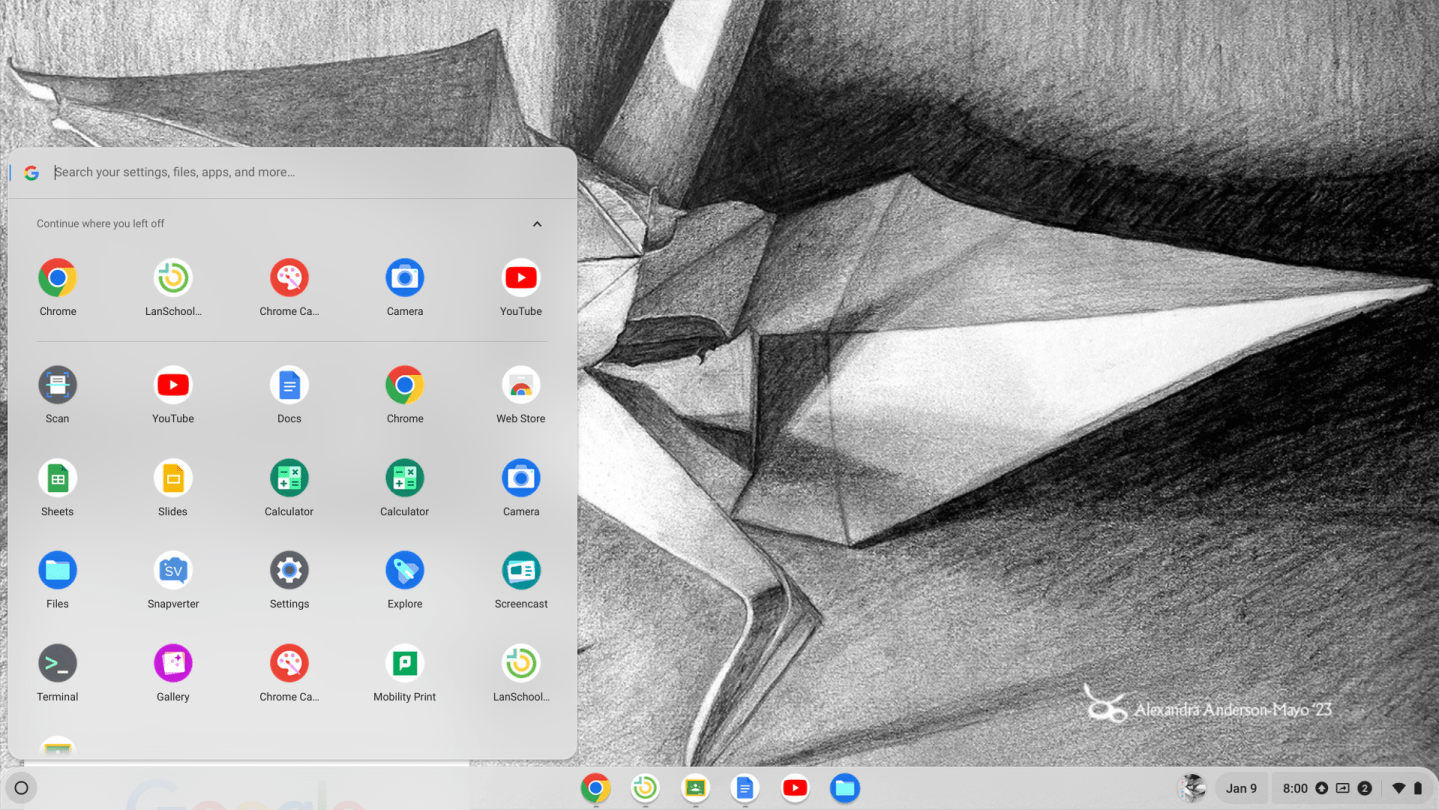
Do you ever find yourself struggling to perfect the grammar of your paper? Or have trouble keeping your assignments organized? Or effectively annotate a reading? Well, every school year Jemicy provides its students with a computer, which has many features available to help students achieve success. There are programs on the devices that have proven to help make learning and working more efficient for most students, the software really helps the students in so many ways. The computers have touch screens which can be useful for certain assignments. However, when it comes down to the most used programs Grammarly, Kami, and Google Classroom are all great resources.
Grammarly is an attachment students can get on their computer which helps proofread their writing. It is extremely helpful for those who typically misspell words or have grammar errors that they miss while proofreading. However, there are a few minor issues that come with Grammarly. First, every now and again it will give you an incorrect grammar suggestion, which means you can’t just accept all of its suggestions, you have to check them and be aware of what changes it is making. In addition, issues can also come up when you have other attachments like Read and Write. Grammarly and Read and Write will sometimes intervene with each other, causing neither feature to work. Personally, I find Grammarly to be a very useful resource, I experience issues with Read and Write weekly, which can be frustrating. However, in the end, Grammarly is a very helpful resource for proofreading and providing higher-quality grammar suggestions.

Kami is another program that comes in handy for many students, especially when digitally highlighting and annotating various passages and assignments. There are many tools you can use to better navigate, examine, and complete various assignments. When we were virtually learning in 2020, Kami was helpful for teachers to assign assignments they would typically hand out as paper copies. While Kami is a great source, you sometimes can run into issues with your work being saved. Before you exit, you have to ensure your work has been saved. Normally you will notice it has been, but every now and again you will have to push a button to save your work. Kami is a wonderful tool for those looking to improve their annotating skills as there are many features to help expand your annotating.

Google Classroom is the foundation of most classes’ digital assignments. In some cases, that is the only way the teacher assigns work throughout the year. It provides a simple and easy way for students to see what has been assigned, communicate between students and teachers, and see their graded assignments. I use Google Classroom multiple times daily, and my school day would look very different without it. One thing that may bother many is that when you turn something in through Google Classroom, you can’t edit it anymore without un-submitting it. While that feature makes sense for many reasons, there are situations where it can be difficult because if you un-submit and then resubmit it will appear as a turned-in late assignment, even if the teacher is aware of the situation. Some features that are helpful include the to-do list, which will tell you what assignments aren’t turned in when assignments are due, and what will be assigned in the future. In addition to the ability to customize the order of your classes on the home page which can visually help students stay organized. Plus, the ability to look back at classes that have been archived by you or your teacher. When a class is archived you can no longer edit, unsubmit, or turn in assignments, but you still have the ability to go back in case you need to check something or want to reuse a source you had used prior.

I also talked to Mr. Sisk, The Upper School Director of Education Technology & Curriculum Innovation’s opinion about some features he recommends. When talking with Mr. Sisk, he expressed that Google Keep is great for “creating, checklists and reminders. You can arrange checklist items by priority, most important to least important.” He mentioned, “At Jemicy we do something called, study by producing. You can produce your own study guides by using tools like Mindomo, Quizlet or Knowt, and Google Slides.” Minmdomo is great for Graphic organizers, and bubble maps that help you to visualize the concepts you are studying. Quizlet or Knowt help with making flashcards to study with. Google Slides is another easy way to create a study page\card. Mr. Sisk added, “I’m also a big fan of Adobe Express’s slideshow creator. You can create video slideshows with text, images, and voice-overs. Again, this is a cool way for students to show what they know.”
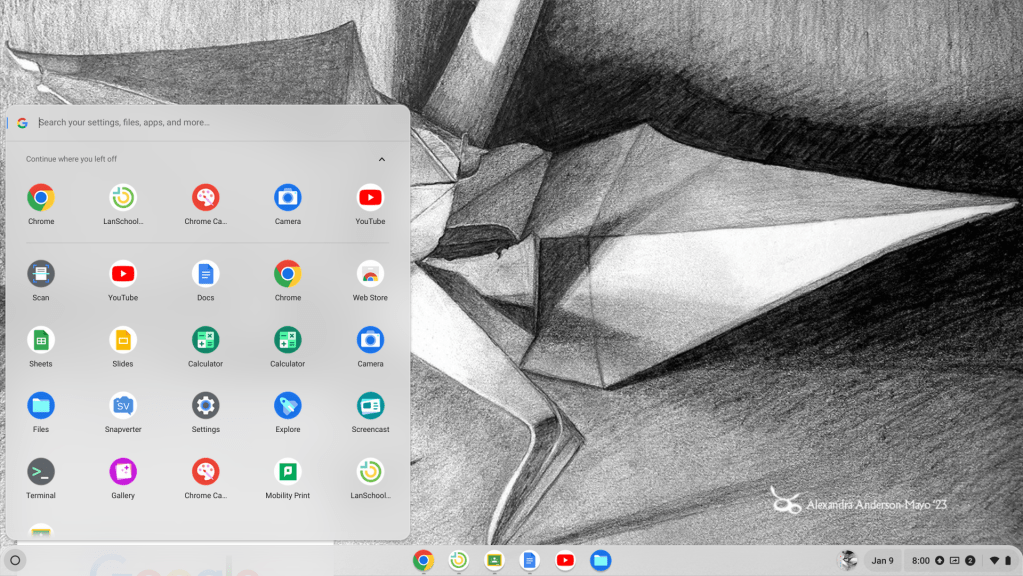
Grammarly, Kami, and Google Classroom are three programs crucial to students’ success as they are used multiple times daily by most students. However technology can always have some issues, so Jemicy School has numerous people who are always available to help resolve tech-related issues. They even have tech student representatives who work to bring ideas and advocate for students in regard to what platforms and programs are useful to them. Overall the computer Jemicy provides and its features are great for students’ needs.

 MOOSE PRINTS
You must be logged in to post a comment.